Utility Manager
Access to Utility Manager
Menubar
Utility Folders
Search for a Utility
Utility List
Access to Utility Manager
To access Utility Manager, do one of the following:
- From Home Base, click Utilities. Accessing Utility Manager from Home Base displays all of the utilities that can be run with people signed into TAM.
- From outside TAM, click Start, (All) Programs, Applied Systems (TAMCloud users click Applied Utilities), Utility Manager. All utilities display when Utility Manager is accessed from this location.
Menubar
File
- Exit: Close Utility Manager.
Options
- Expand Utility List: Open all folders in the Utility List treeview.
- Collapse Utility List: Close all folders in the Utility List treeview.
- Hide Utility List: Expand the screen and close the Utility List.
- Show Utility List: Display the Utility List (This option displays when the Utility List has been hidden).
- Continue: Begin the selected workflow. This has the same function as the arrow
 button.
Help
- Contents: Access TAM Help.
- Utility Manager: Access help for this area.
- About: View program specifications and copyright information.
Back to Top
Utility Folders
TAM utilities are found in the treeview on the Utility Folders tab. Double click a folder or click the plus sign next to it to view its contents.
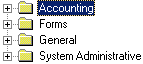
To open all folders at once, click Options and select Expand Utility List. To close all, select Collapse Utility List.
To expand the screen and hide the Utility List, click Options and select Hide Utility List. If the Utility List is hidden, click Options, Show Utility List to view it.
To run a utility, double click an item in the Utility List treeview. A window displays the name of the utility and a description.
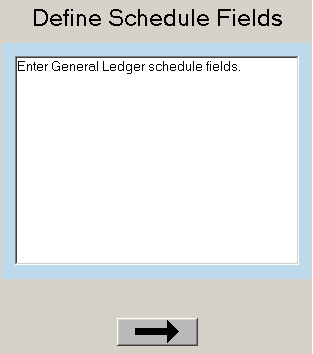
Click the arrow below the description to begin the workflow.
For a list of TAM utilities and their descriptions, refer to the Utility List.
Search for a Utility
To search for a utility, click the Search tab, enter the word(s) to search for, and click List. A list of utilities whose titles include the keyword(s) entered displays in the Select utility list.
Click a utility in the list to display its name and description. To run the utility immediately, click the arrow .
Back to Top