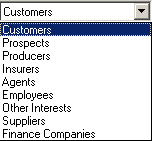
Clients & Files provides options to store and work with data for the following entities:
Most of the day-to-day activity on the system takes place in Clients & Files.
To access Clients & Files, at Home Base click the Clients & Files button.
Click the dropdown menu above the list to access the entities.
The button bar and list change based on your selection.
The list information changes depending on the entity you selected from the dropdown menu.
Locate a file in the list by using the scroll bars or arrow keys to move up and down. You can also select any row in the list and type the first few characters of the file name to jump to the closest match (first name for businesses or last name for individuals).
A summary of the selected file appears in the sidebar.
The following buttons appear depending on the entity selected from the dropdown menu. Move the cursor over the button to view the button name. Select an item in the list, then click the desired button.
|
|
Clients & Files: Return to list when another screen is active. If you are already at the list, this button has no effect. |
|
|
Policy List: View the Policy List for the selected client. The list contains all of the client's policy risks. |
|
|
Activity List: View the Activity List for the selected entity. The screen displays a list of the entity's activities. |
|
|
Memo List: View the Memo List for the selected entity. |
|
|
Contact List: View the Contact List for the selected entity. The list contains names, locations, phone numbers, email addresses, and other information related to individuals associated with the selected entity. |
|
|
Commercial Info List: View the Commercial Info List for the selected client. The list provides access to commercial information screens. |
|
|
Note List: View the Note List for the selected entity. Use this option to add or view notes.
|
|
|
Claim List: View the Claim List for the selected client. Use this option to add or view client claims. |
|
|
Transaction List: View the Transaction List for the selected entity. View transactions, either pending or general, through this option. |
|
|
Attachment List: View the Attachment List for the selected entity. Attachments include documents, images, and email. |
|
|
Sticky Notes: Create and attach a sticky note to the screen currently being viewed. |
|
|
Attendance List: View the Attendance List for employees. |
|
|
Wizards: Start one of the following workflows.
|
|
|
Links: This UK Addition enables you to launch third-party software and to access websites from within TAM. |
|
|
Help: Access on-line help. |
|
|
Renewals: This UK Addition allows you to renew policies. |
|
|
Quote: This UK addition allows you to obtain policy quotes. |
|
|
View the previous entity screen. |
|
|
View the next entity screen. |
|
|
Add a new item (record, policy, activity, etc.). The program displays different screens depending on what is added. |
|
|
Remove the item currently highlighted. |
|
|
Return to Home Base. The previously screen remains open, but inactive. |
The menubar contains five options: File, Edit, Options, Window, and Help.
The following options are available from the File menu.
The following options are available from the Edit menu.
The Options menu varies depending on what list you are viewing.
The following options are listed on the Window menu.
The following options are available from the Help menu.
Contents: Access on-line help.
Clients & Files: Access on-line help for this section.






